AniPixel AI · anipixel.xyz
AniPixel AI — AI image to pixel art for anime-style art
Upload an image to Pixelize and AI redraws it as pixel art — clean edges, compact colors, readable silhouettes. Built for anime-style art; want a new scene, try Raffle. 1 credit per image (5 free on signup), plus free browser tools that never spend credits.
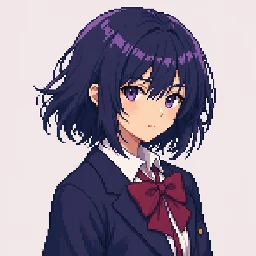

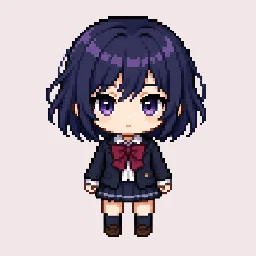
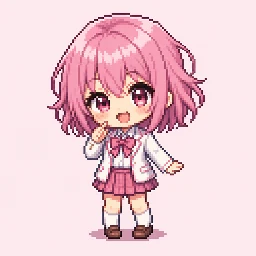
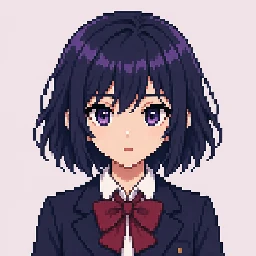

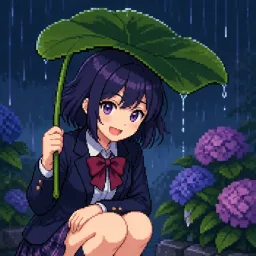
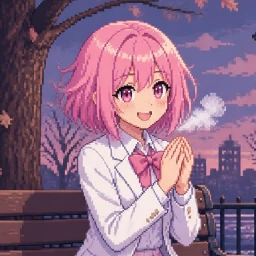
A web app for creating pixel art
AniPixel AI is an AI image-to-pixel-art web app with an anime-style focus (anipixel.xyz). Open Pixelize, pick a preset, and generate; Raffle gives the same character a new scene without writing a prompt.
Remove backgrounds, clean up pixel grids, and build bead charts in your browser — free, no login, no credits.
Before & after
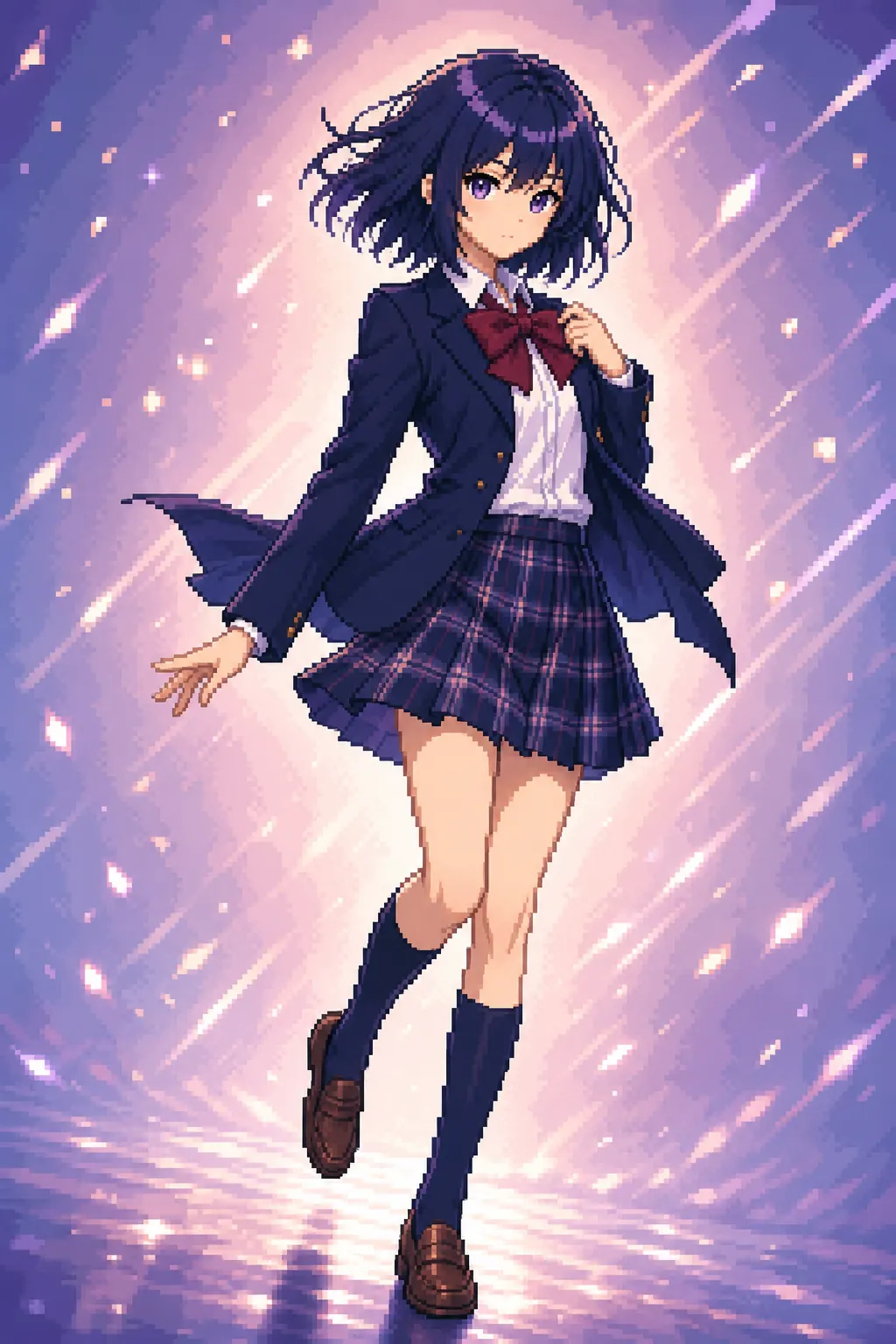
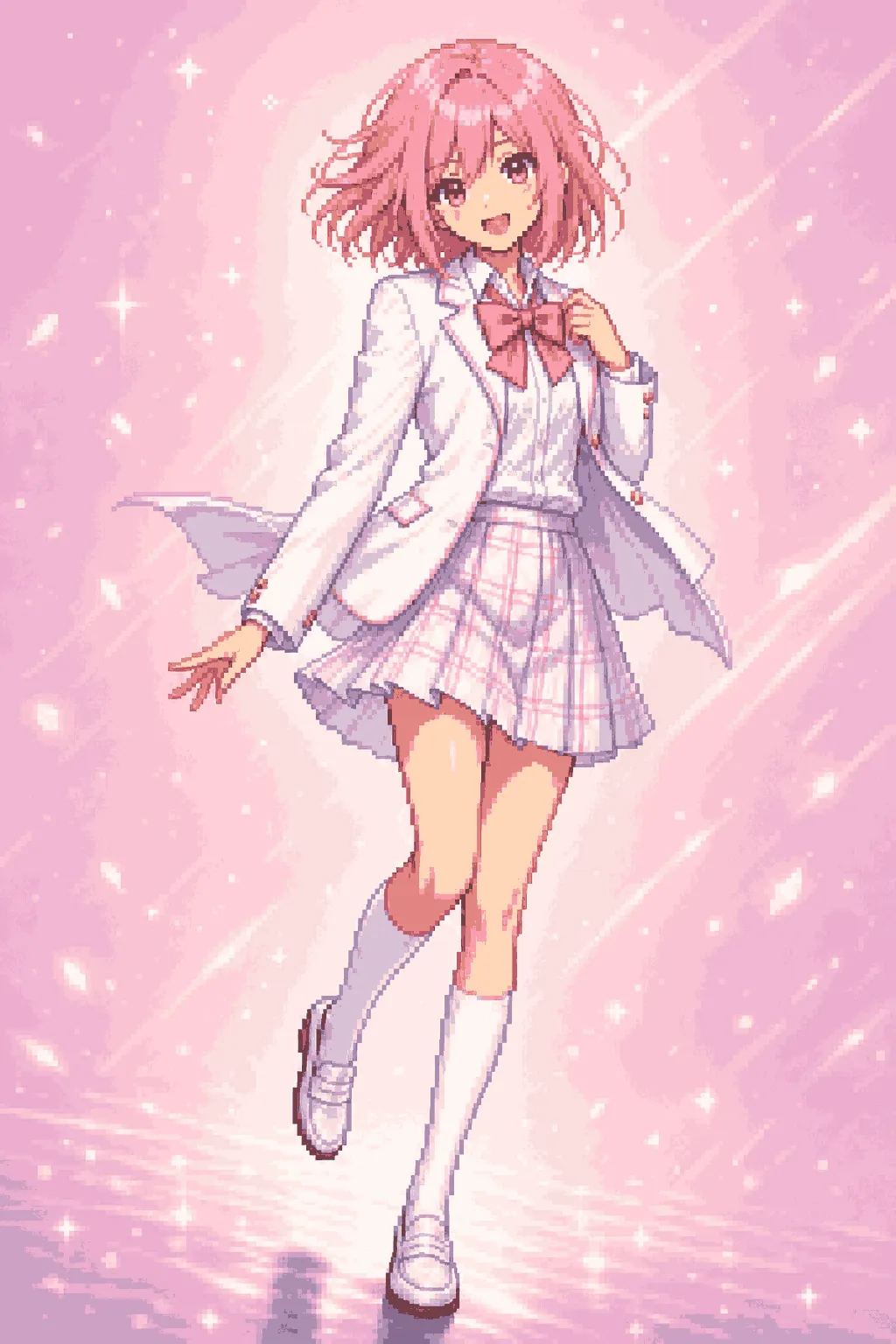
From image to pixel art: the same character redrawn with a readable silhouette and compact palette.
Anime pixel art from your image.
Keep the pose and character identity, then let AniPixel rebuild the image as anime pixel art — hard edges, cleaner color blocks, and game-ready readability.
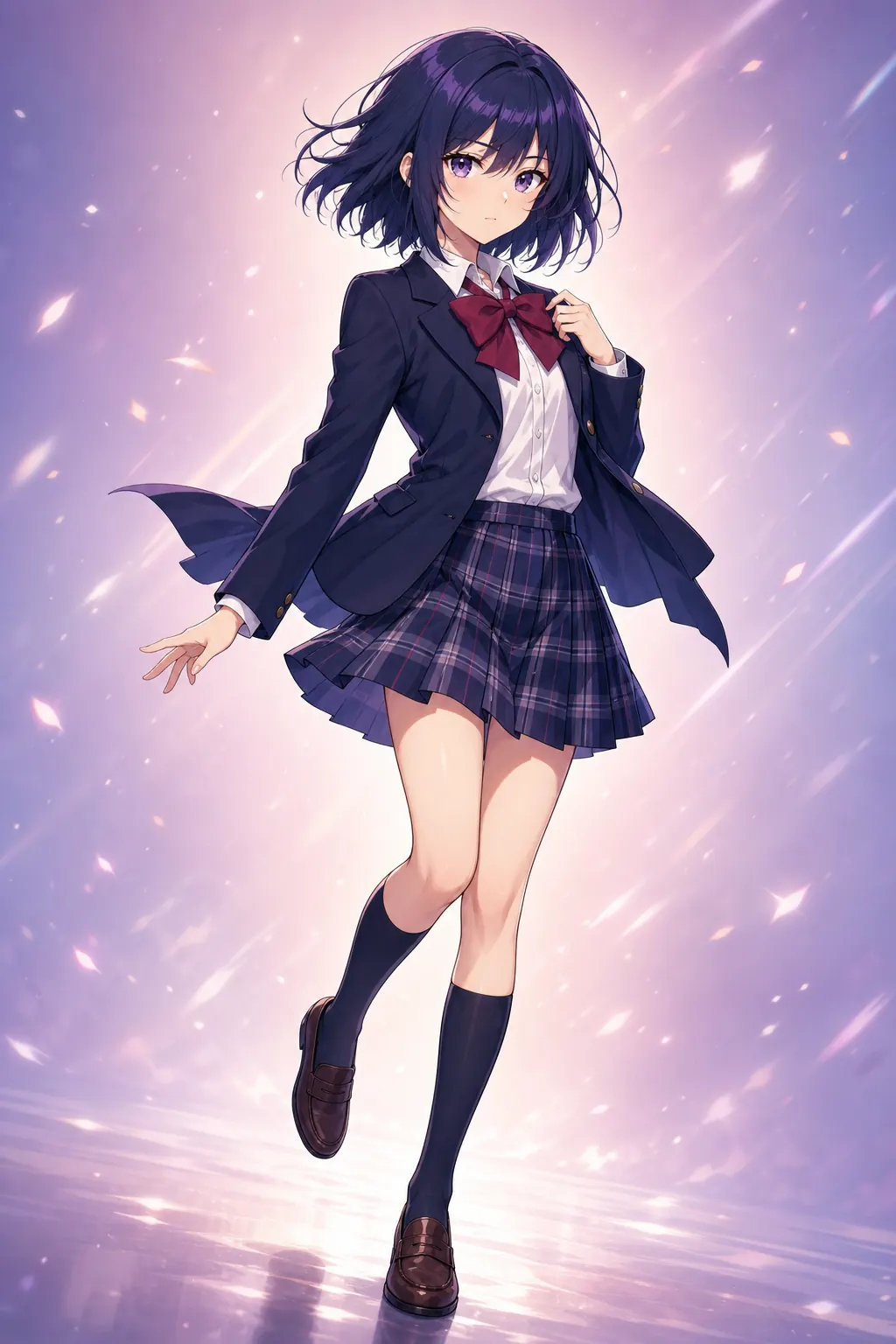
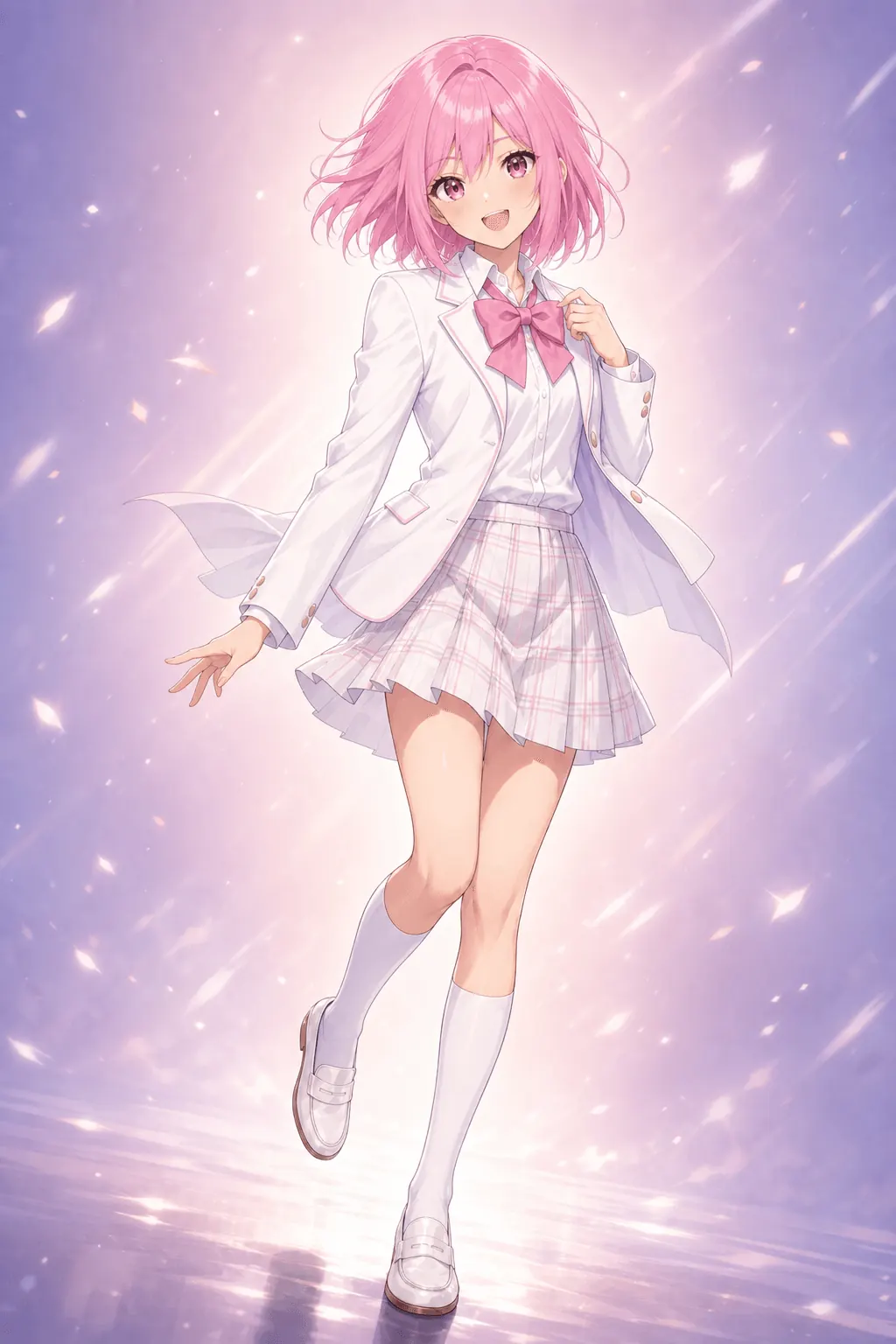
What you can do
8 AI presets to steer the look, plus 5 free browser tools for everyday cleanup — no credits.
Pixelize
Turn images into clean pixel art and pixel art icons with AI while preserving the source aspect ratio — best suited to anime-style art.
1 creditRemove Background
Solid background or Smart cutout in your browser, then a transparent PNG — free, no upload, up to 10MB.
FreePixel Art Scaler
Perfect pixel & upscale pixel art without blur — fix the grid or integer-upscale any sprite. Free, no upload, up to 10MB.
FreePixelate Image
Classic photo-to-pixel conversion in your browser. Same structure, chunkier pixels, up to 10MB. For game-style pixel art, use Pixelize.
FreeHow it works
- Upload
Drop an image into Pixelize — illustrations, screenshots, and more.
- Choose a preset
Pick from 8 presets — Redraw, Chibi, Portrait, Scene, and more.
- Generate & download
Run Pixelize, tweak settings if needed, then export a clean PNG.
FAQ
What is AniPixel AI?
AniPixel AI is an AI image-to-pixel-art web app with an anime-style focus. Upload an image in Pixelize, pick a preset, and download a PNG with hard edges and compact colors. Each image costs 1 credit; new accounts get 5 free credits.
Can I convert a photo to pixel art?
Yes, but photos and selfies are not the main use case. Results are more reliable on anime-style art; portraits can work when the subject is clear and the face fills enough of the frame.
How do I convert an image to pixel art?
Open Pixelize, upload a JPG, PNG, or WEBP up to 20MB, start with the Redraw preset, generate, then download the PNG. Each result costs 1 credit.
What's the difference between Pixelize and Pixelate?
The free Pixelate tool keeps your image and makes it blocky. Pixelize uses AI to redraw it as pixel art with cleaner edges and a game-style look. Pick whichever finish you want.
How do free credits work?
New accounts get 5 credits. Pixelize costs 1 credit per image; failed runs are refunded. Subscribe or buy packs on Pricing. Browser tools such as Remove Background, Pixel Art Scaler, and Pixelate never use credits.
Who owns my uploads and outputs?
You keep ownership of what you upload. You may download and use outputs you generate, subject to rights in your source material and the Terms. Pixelize sends uploads to third-party AI providers; the free browser tools run locally and do not upload.
When should I use Redraw, Chibi, or Raffle?
Redraw keeps the composition. Chibi pixel art shortens the figure to a cute 2–3-heads-tall look for stickers and avatars. Raffle keeps the same character and rolls a new scene — use it when you want a different pose or setting without writing a prompt.
Try it with an image?
Open Pixelize and use an image you have rights to. New accounts start with 5 free credits.
Start pixelizing